

Bring Guance incident analysis into your team's group chat
Connect a Guance Agent to an on-call group, route alert analysis to the right conversation, and review the evidence before taking action.
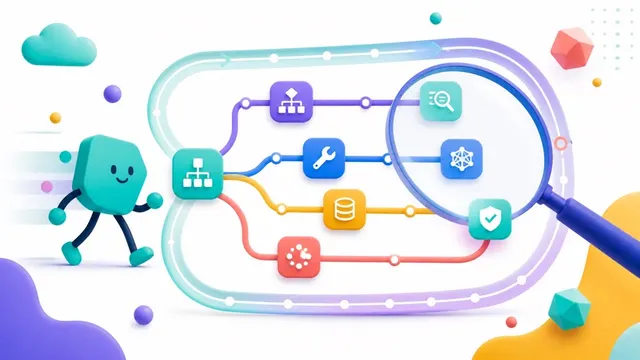
An order-service alert arrives in the on-call group. One engineer opens the monitoring console, another checks a trace, and someone pastes a log excerpt into the chat. Before the team can investigate together, it has to reconstruct the same context in several places.
A Guance Agent can bring an initial analysis into that conversation. Connect it through a Message Channel, establish the group as a delivery target, and configure which events it should analyze. The team can then discuss the findings and ask follow-up questions alongside the alert.
This walkthrough uses an illustrative order-service incident. It explains the documented setup and investigation workflow; the example is not a measured incident response result.
Connect the Agent to the right group
Open the target Agent's workspace, select Message Channels, and create a channel for one of the platforms shown in your edition. The current documentation lists Weixin, WeCom, DingTalk, and Feishu for Obsy. It lists a separate platform set for the overseas edition, so do not treat Feishu and Lark as interchangeable choices.
Follow the platform-specific instructions for credentials and authorization. The required fields differ: a WeCom intelligent bot uses a Bot ID and Secret, while Weixin uses the login flow shown in the console. A generic “App ID plus Secret” recipe does not cover every platform.
Save and enable the channel, add the bot to your test group, and send it a message. That last step establishes the conversation as a Channel session. Creating the connection alone does not necessarily make the group available as a result-delivery target.
Use the Message Channels guide for the full setup. The WeCom configuration guide describes its long-connection setup and credential fields.
Route alert analysis to that conversation
Group-chat access and automatic alert handling are separate configuration steps. Task Intake determines which events reach the Agent and where the analysis goes.
For workspace monitor events, select the target Agent in the alert policy and review its Workspace intake settings. Choose the established Channel session for result delivery. If responders should see the original event before the analysis is ready, enable Deliver source events first where available. Otherwise, the configured flow can deliver the completed analysis without that early notification.
An external alerting or ticketing system uses Custom intake instead. Confirm the trigger and delivery target with a test event before relying on the group during an incident. The Task Intake documentation covers both paths.
Ask for an investigation with a clear scope
Once the Agent is available in the group, ask a question that identifies the service, environment, and time window. For example:
Analyze alerts for the order platform in production over the last 30 minutes. Summarize the likely cause, show the supporting logs and traces, and identify what still needs confirmation.
The useful output is a short explanation that the team can check. In the order-service example, that might include:
- The affected requests and the period when errors increased.
- A hypothesis that Redis timeouts in
inventory-serviceinterrupted inventory reservations. - The logs, spans, and metric changes supporting that hypothesis.
- Relevant source locations, if repository access and the available context support that mapping.
- The next checks to distinguish a dependency outage from a connection-pool or timeout configuration problem.
These are examples of evidence to request, not findings that every alert will produce. The Agent's analysis depends on the data, enabled tools, and permissions available to it. A source-file reference should be verified against the deployed version; a plausible explanation still needs supporting evidence.
With that context in the group, responders can ask focused follow-ups: Did the errors begin after a deployment? Are other callers affected? Does the failed span show the same timeout as the application log? The shared conversation reduces the need to repeat the investigation every time another engineer joins.
Review a proposed action before applying it
An Agent may suggest restarting a workload, adding capacity, or changing a configuration. The suggestion and the action are separate steps. Before a change, confirm the affected resource, the expected effect, and how the team will verify recovery or roll back.
Do not assume that asking through group chat creates a universal approval requirement. The applicable permission mode and authorized tools determine what the Agent can do. The current Custom intake documentation distinguishes default permissions, which request confirmation when required, from full access, which can allow actions within the Agent's capabilities without asking each time. For this walkthrough, start with analysis and recommendations, and complete the required review in the task or console before making an operational change.
Validate the handoff before an incident
In a test group, confirm that the Agent receives a message, the intended alert reaches it, and the result appears in the selected conversation. Then check that a responder can follow the evidence back to the relevant data and continue the investigation.
If a group is missing from the delivery list, check the channel status, send the bot a message from that group, and refresh the settings. If the analysis lacks evidence, inspect the task session and the data or tools available to the Agent before expanding its role.
The outcome to aim for is practical: everyone in the incident conversation can see what the Agent found, what remains uncertain, and which action the team has chosen. Guance Agent Teams supplies the workflow and access to operational context; the quality of the investigation still depends on the evidence collected and the decisions made from it.
Contact us
Join the community

to join the community
Try Guance
Start online and pay only for what you use.
Get startedChoose a Guance plan