Give engineers and AI Agents a governed Guance command layer
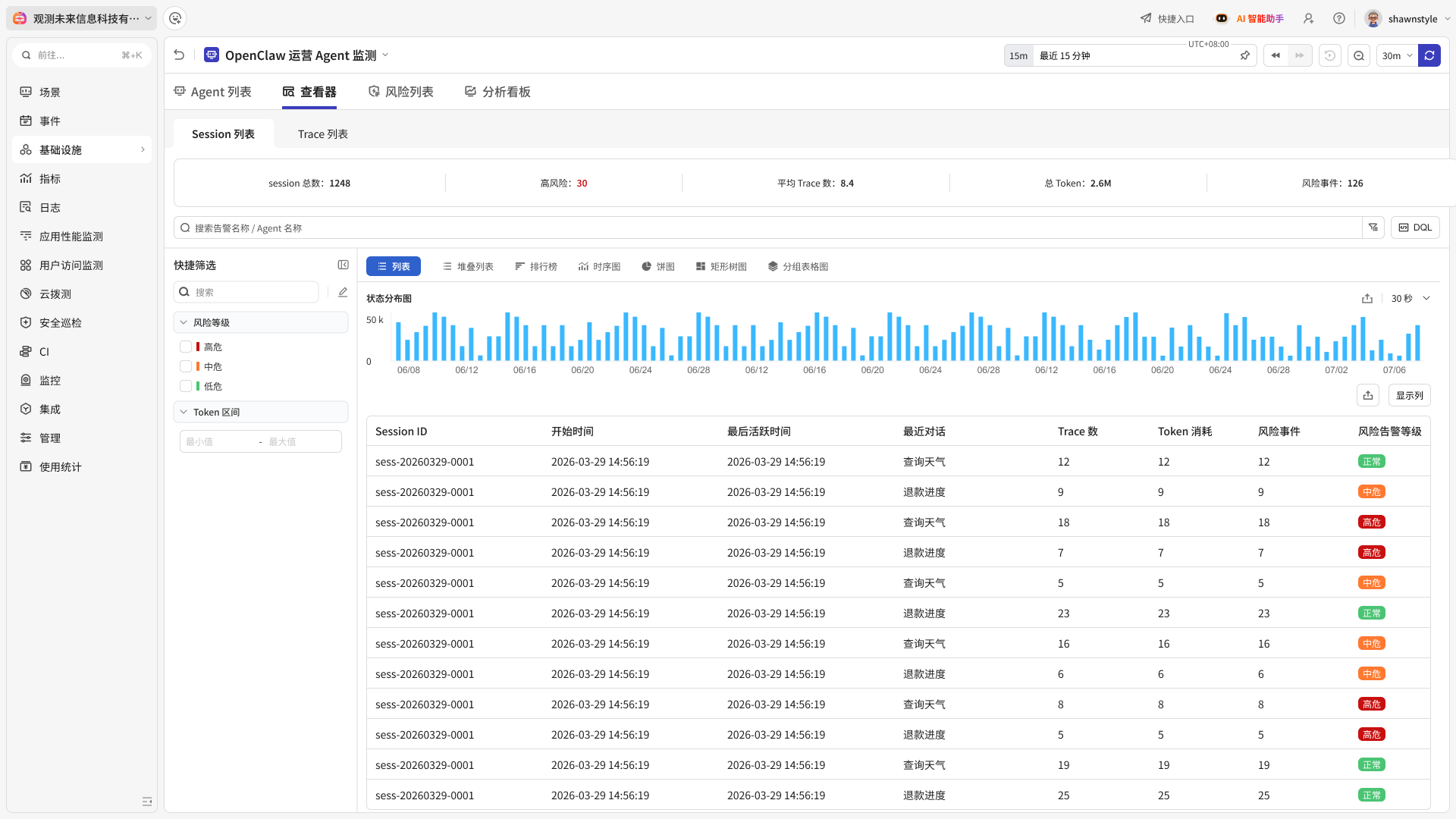
OWL CLI synchronises the tool catalog available to an authorised Guance workspace, shows tool schemas, and executes supported query or management tools from a terminal, script, or AI Agent workflow.
Paste this instruction into an AI tool. Select the site endpoint first, then replace the temporary authorisation code:
Read https://static.guance.com/owl/skill.md and follow it to install and configure OWL CLI and the OWL Skill in the current environment.
Use these installation values: OWL_REGISTRY_ENDPOINT="<OWL_REGISTRY_ENDPOINT>" OWL_TEMP_CODE="<YOUR_TEMP_CODE>"
Choose OWL_REGISTRY_ENDPOINT from the endpoint table for the workspace site. Generate OWL_TEMP_CODE from Personal API Keys in the Guance console.
Linux / macOS command. Select the site endpoint first, then replace the temporary authorisation code:
Expose the tools permitted by the configured credential, with the inputs visible before execution
OWL CLI does not replace the Guance console or OpenAPI. It provides a tool-oriented entry point for catalog sync, schema inspection, queries, and supported actions. Tool visibility and results follow the API Key permissions; write tools change workspace resources and should remain behind an explicit review or approval step.
Use OWL from terminals, scripts, and supported AI Agent tools
Client capabilities and installation flows differ. Verify the current setup guide for the environment in which OWL will run.
Claude Code
Codex
Cursor
Trae
GitHub Copilot
Windsurf
A tool catalog for real observability work
The catalog is synchronised from Guance and evolves with platform capabilities. Use `owl list` and `owl show` to confirm the tools, parameters, and permissions available in the current workspace.
Query observability data
Discover and query supported metrics, logs, RUM, APM, network, profiling, billing, and related data.
Validate a DQL workflow
Search DQL guidance, validate a complete query, and then run it against the intended data scope.
Inspect events and incidents
Read event, incident, comment, operation, and on-call context exposed by authorised tools.
Review resources and topology
Query catalog entities, infrastructure records, entity details, and available relationships.
Work with monitors and SLOs
List or manage supported monitor resources and inspect available SLO context according to permission.
Work with dashboards
Read or perform documented dashboard actions when the credential grants the required access.
Reviewable workflows, not opaque answers
Start from a concrete operational question, keep the tool call and parameters visible, and separate returned evidence from the final engineering judgement.
A production endpoint begins returning more 5xx responses
On-call: inspect errors for prod /checkout during the last 30 minutes
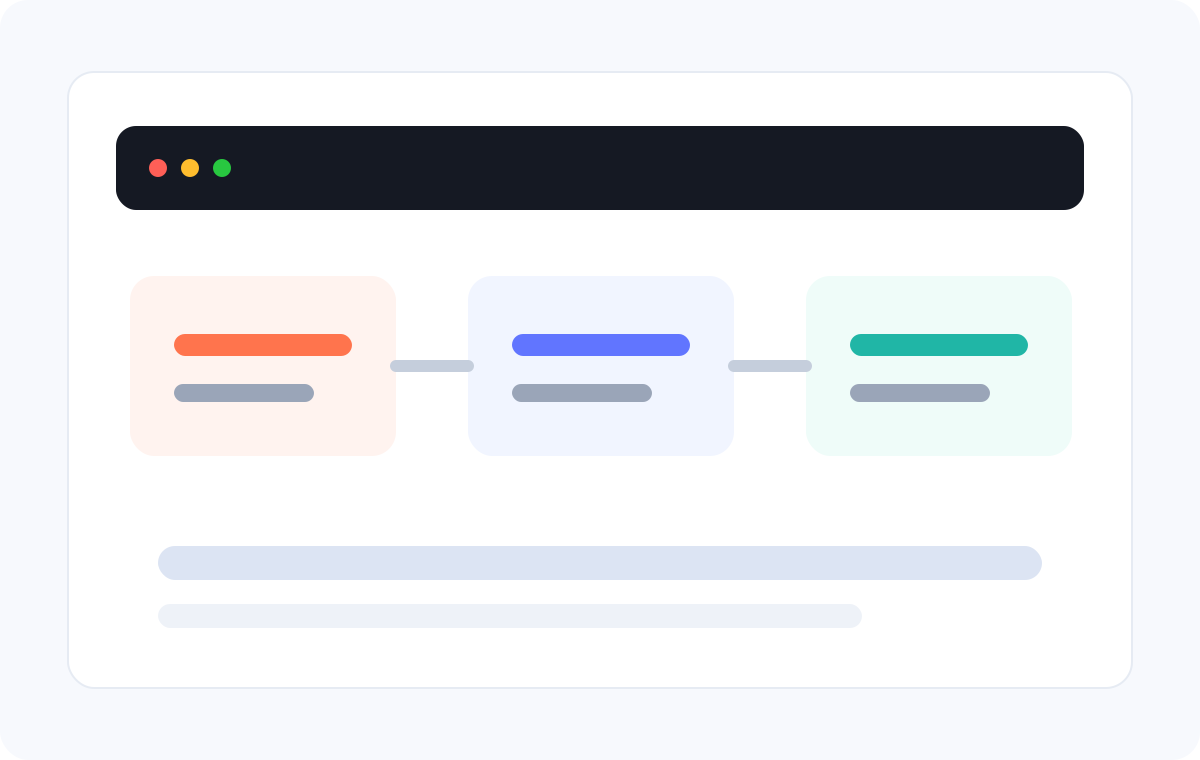
Use authorised discovery and query tools to identify the relevant data source, validate the query, and compare log or trace evidence by service, endpoint, environment, and version.
ScopeService and time
→
EvidenceLogs and traces
→
ReviewAffected version
A trace must be investigated across workspaces
Platform team: locate this Trace ID in same-organisation workspaces
Use workspace discovery and the dedicated trace query path where it is available, then review the returned workspace, service, and span context before drawing a conclusion.
DiscoverWorkspaces
→
QueryTrace evidence
→
ReviewService path
A daily operational review needs consistent inputs
SRE: review core-service errors, slow requests, and monitor state each morning
A script or Agent can invoke read-only tools on a schedule and produce a draft summary. Keep query windows and tool results attached so an engineer can verify changes before acting.
OWL CLI is Guance’s command-line entry point for synchronising a tool catalog, viewing tool descriptions and schemas, and executing supported Guance tools from a terminal, script, or AI Agent workflow.
Which capabilities can OWL CLI access?
The available categories and tools are returned by the current Guance service and depend on the configured workspace and API Key permissions. Use `owl sync`, `owl list`, and `owl show` to verify the current catalog rather than relying on a fixed marketing list.
Does OWL CLI support write actions?
Some documented tools create or update resources. A write tool changes the Guance workspace and requires the relevant permission. Use manual confirmation or another approval control before an AI Agent performs write actions.
How is OWL CLI related to OWL MCP Server?
Both expose Guance’s tool-oriented capabilities. OWL CLI is designed for local command-line, script, and Agent workflows; OWL MCP Server presents tools to clients through the Model Context Protocol.